
What people use Kanso for.

From the first spec to the release and the talk around it: the jobs software teams and solo builders do in Kanso, each one shown in the real app.

Start free

DocsBoards

Specs for coding agents

Write the spec once and hand your coding agent the whole picture.

  1. 01Plan the feature in a doc: the outcome, the flow and how you will know it worked.
  2. 02Turn each to-do into a card on the board, linked back to the spec.
  3. 03Select the blocks and copy them as Markdown for Claude Code, Cursor or any agent.
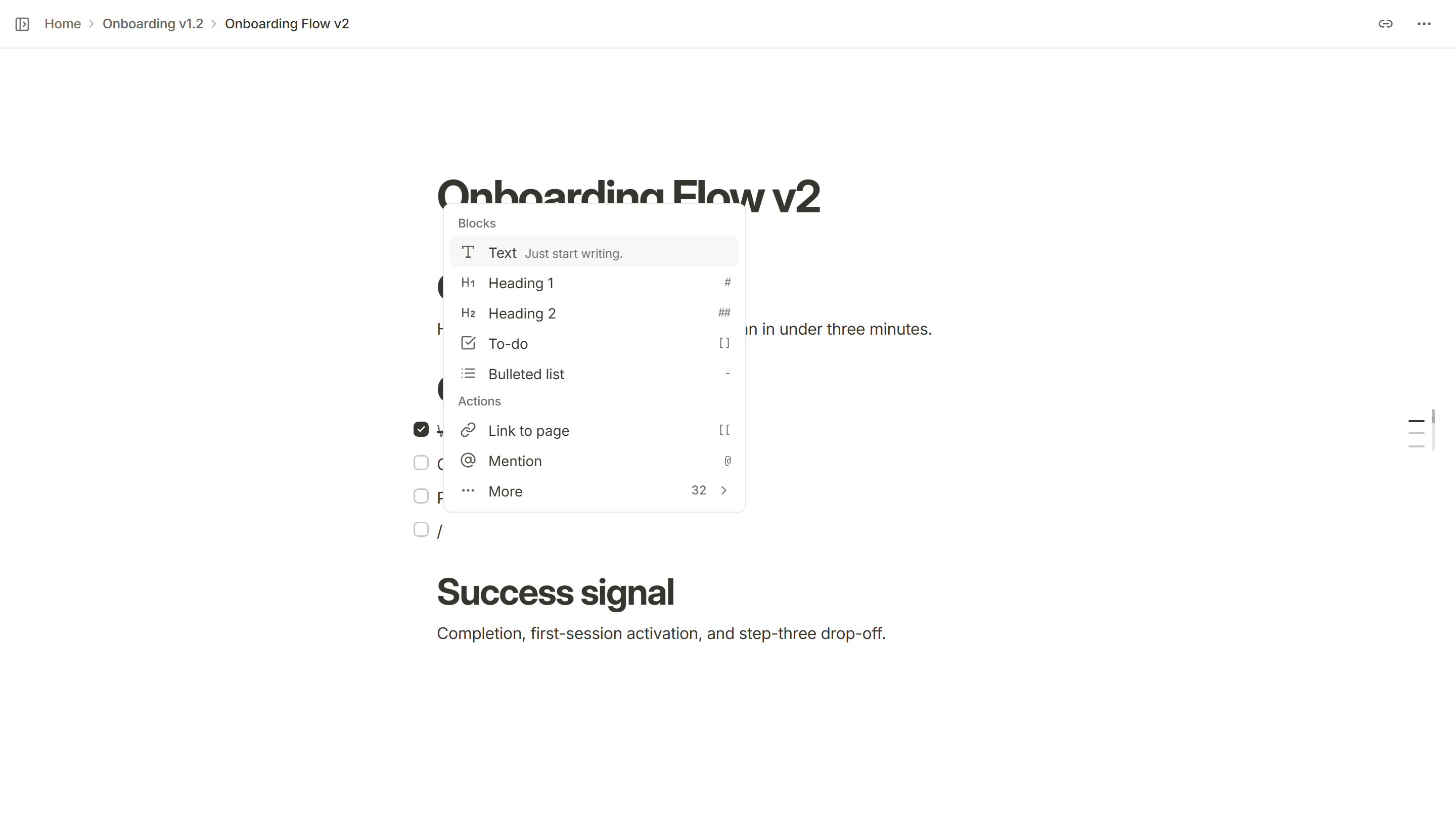
The slash menu open in a Kanso doc, listing the Text, Heading 1, Heading 2, To-do and Bulleted list blocks, then the Link to page and Mention actions.

Boards

Bug tracking

Every bug on one board, in the order it should be fixed.

  1. 01Add each bug as a card with an owner and a due date.
  2. 02Mark it Must, Should or Could, so the order of work is never a guess.
  3. 03Drag it to Done when the fix ships. The whole team reads the same board.
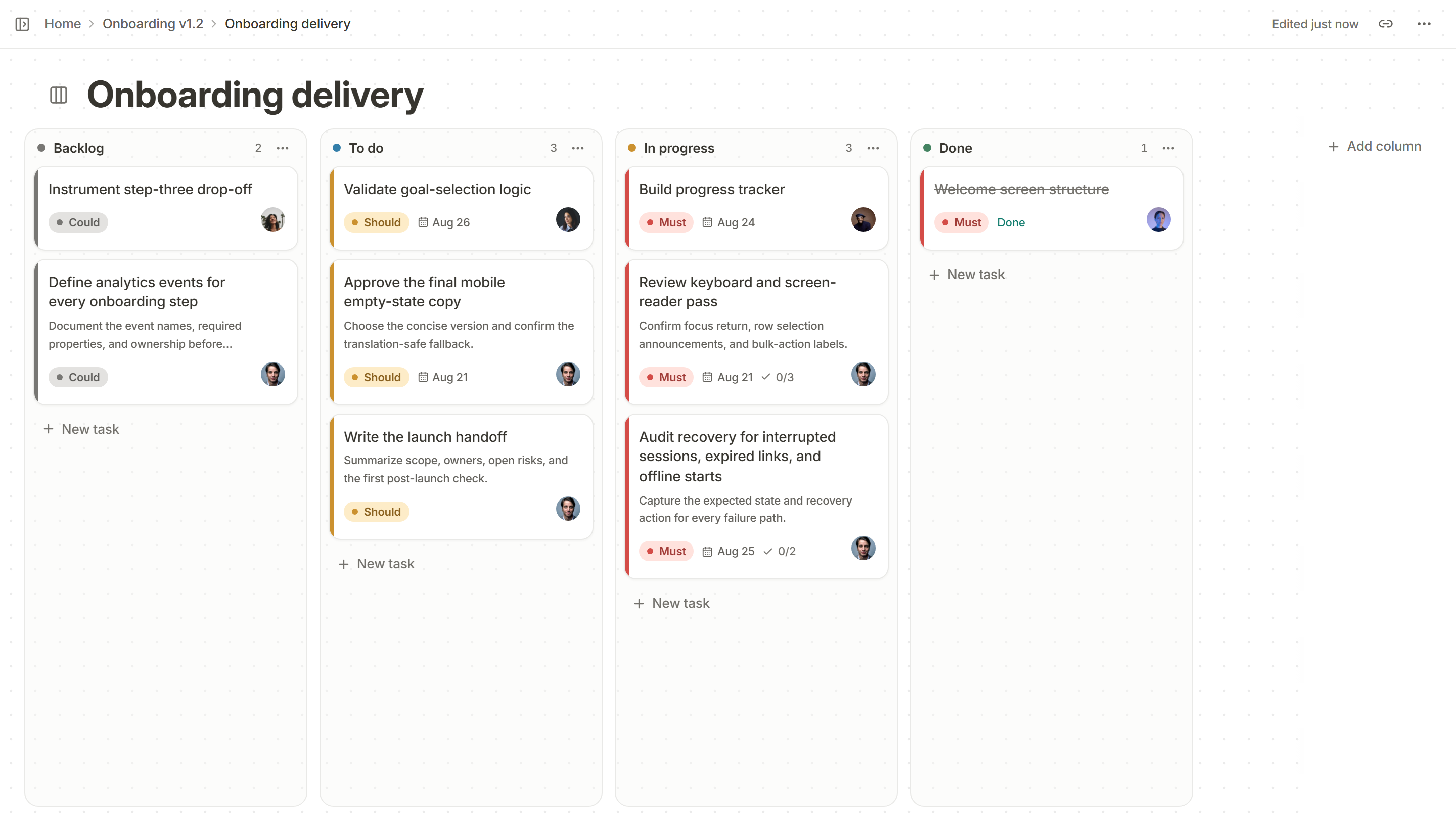
Cards in the Backlog and To do columns of a Kanso board, each with a Could or Should priority tag and an owner photo, the To do cards also showing a due date.

BoardsReleases

Acceptance and QA

Agree what done means before the work starts.

  1. 01Write the acceptance criteria on the card as a checklist.
  2. 02The card shows how many are met, right on the board.
  3. 03Give QA its own section on the release page, beside product and launch.
Two Must-priority cards on a Kanso board, each showing a due date and how many acceptance criteria are met, 0 of 3 and 0 of 2.

ReleasesBoards

Release planning

One page for one ship date, and what is holding it up.

  1. 01Gather the work behind the date into sections, one for each team.
  2. 02Each line links to the real task, with its owner, due date and status.
  3. 03One click narrows the release to what is blocked or overdue.
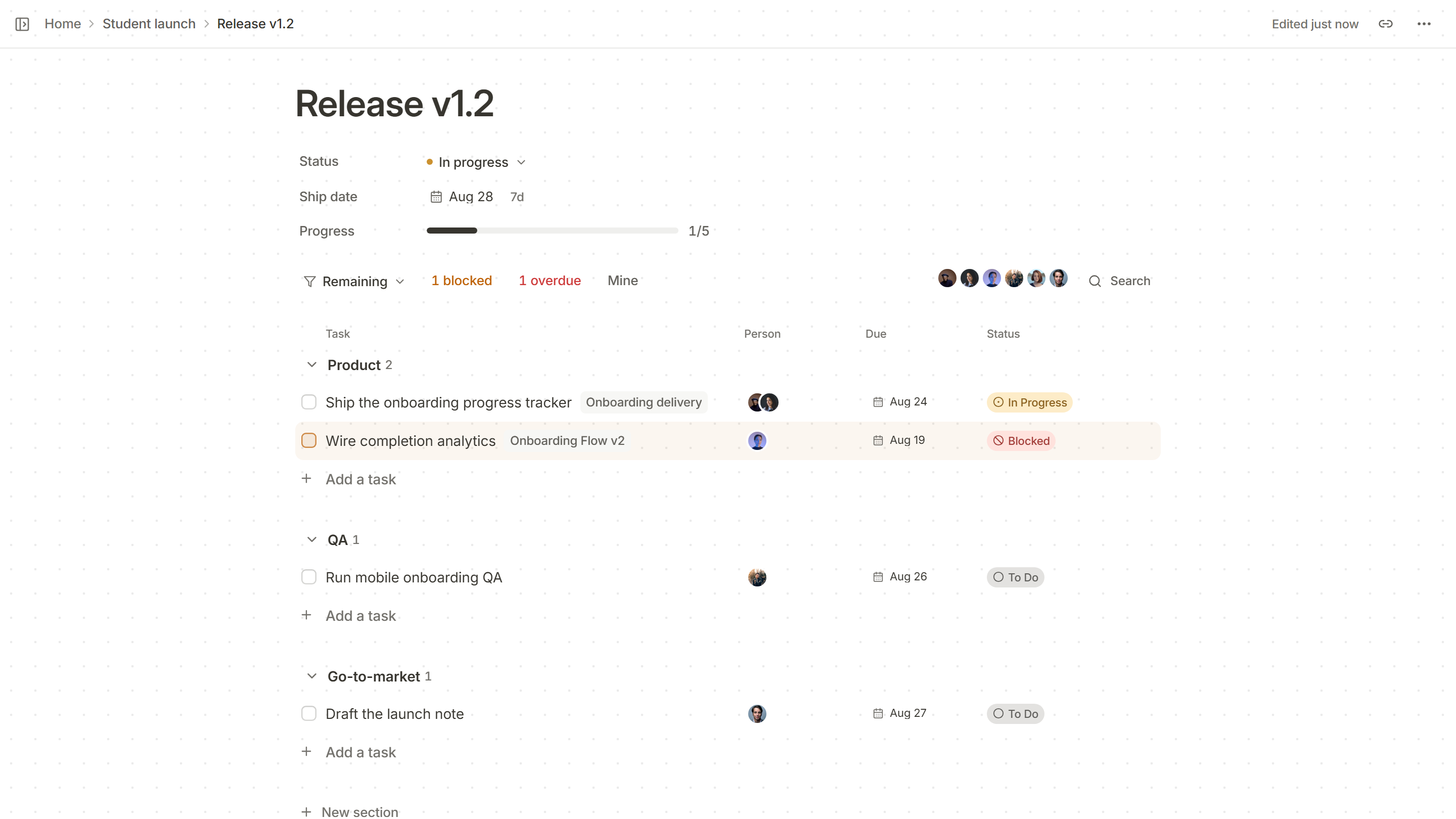
The filter bar of a Kanso release page, with Remaining, 1 blocked, 1 overdue and Mine, above the Product and QA sections.

Releases

Launch checklist

Everything launch day needs, in one list for each team.

  1. 01Add a go-to-market section beside product and QA on the release page.
  2. 02Give every line an owner, a due date and a status.
  3. 03Watch the progress at the top fill as the lines are done.
A Kanso release page with Product and QA sections, each listing its tasks and an Add a task row.

CalendarBoards

Planning the week

See the week and the work that has to fit into it.

  1. 01Due dates land on the calendar by themselves.
  2. 02Your open tasks sit beside the week: critical, up next, planned and someday.
  3. 03Change a date on the board and the calendar already knows.
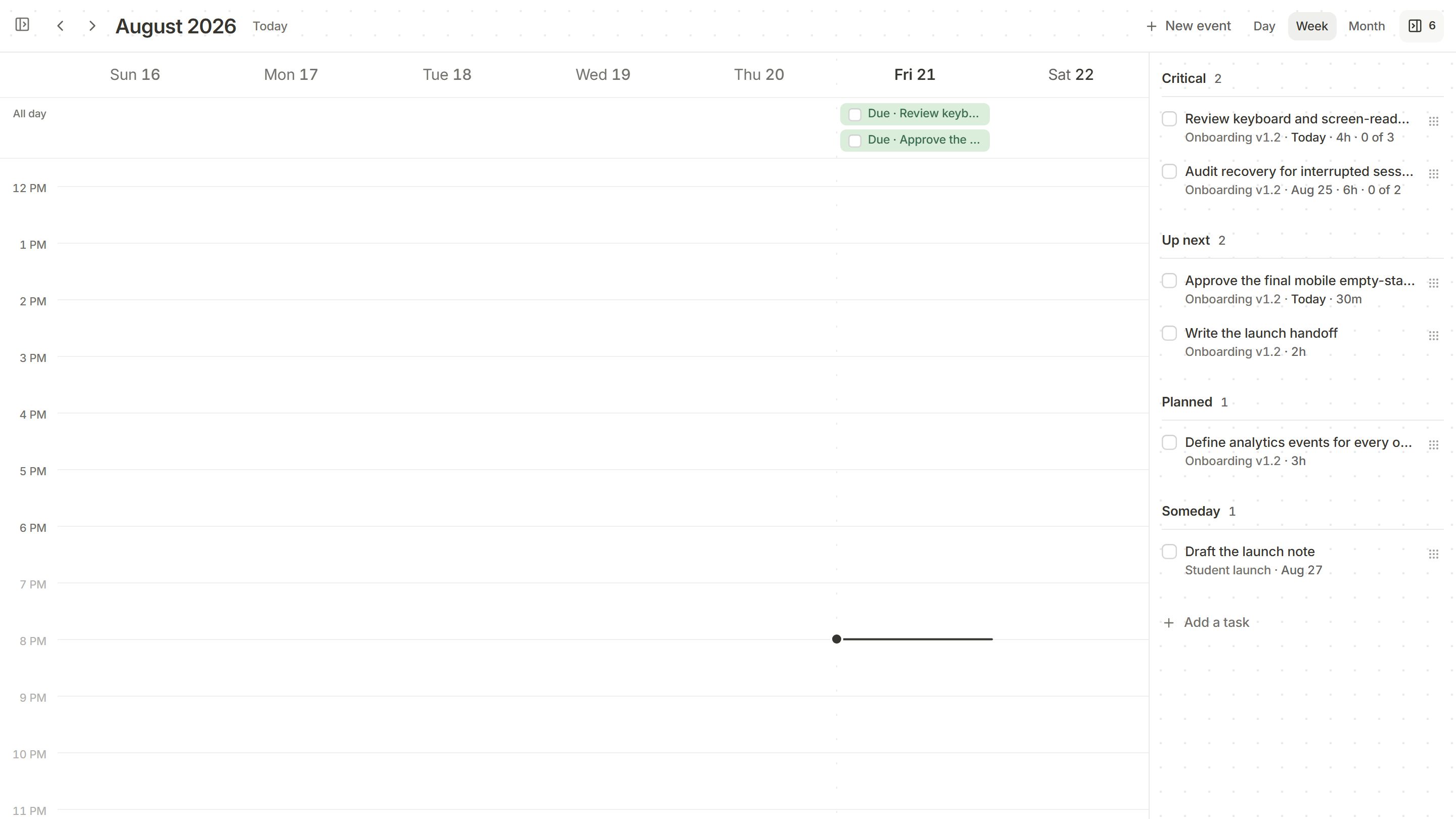
A Kanso task list grouped into Up next, Planned and Someday, each task with its release and time estimate.

Docs

Team notes and onboarding

Keep what the team knows next to the work it describes.

  1. 01Write pages inside the project, with a sub-page for each topic.
  2. 02Start the next page from a template instead of a blank one.
  3. 03Send a read-only link that opens without an account.
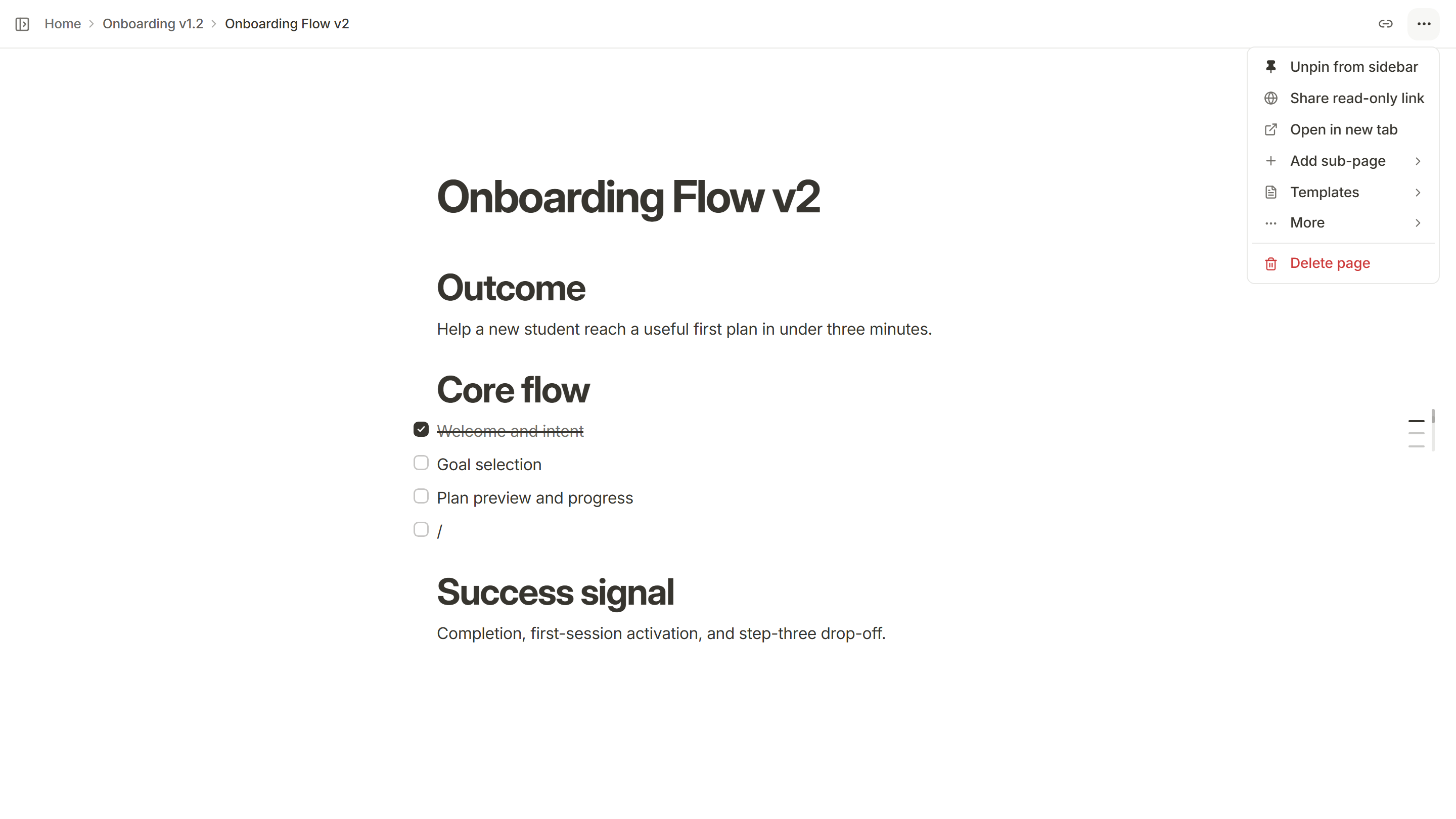
The More menu of a Kanso doc, with Unpin from sidebar, Share read-only link, Open in new tab, Add sub-page, Templates, More and Delete page.

Chat

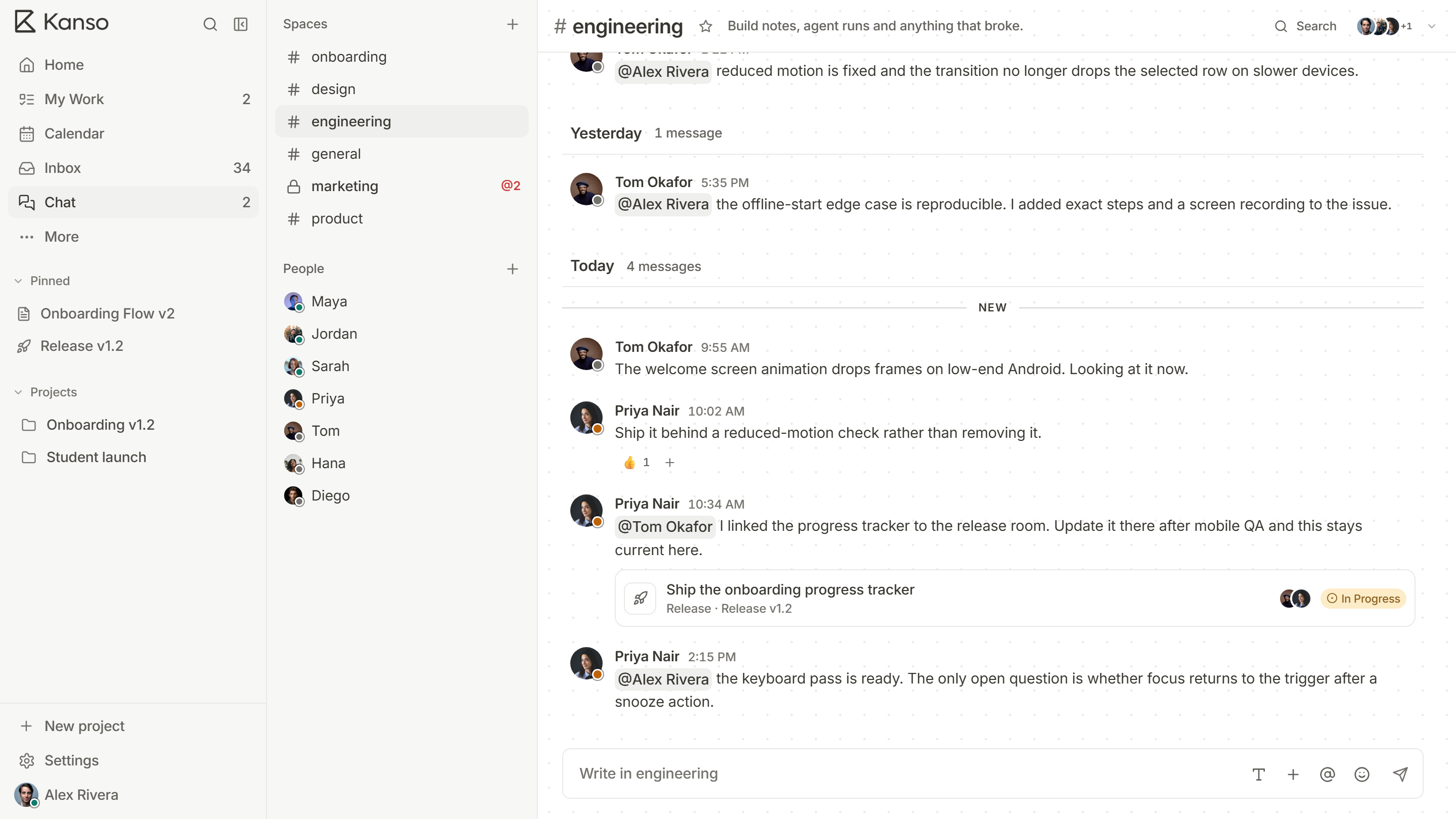
Team chat beside the work

Talk about the task right where the task is.

  1. 01Channels for each part of the work, and direct messages.
  2. 02Paste a task and the message shows its current status.
  3. 03Reply in place, or react without another line of chat.
A Kanso chat message mentioning Tom Okafor, with a linked release task, Ship the onboarding progress tracker, shown as a card beneath it.

Inbox

Catching up after time away

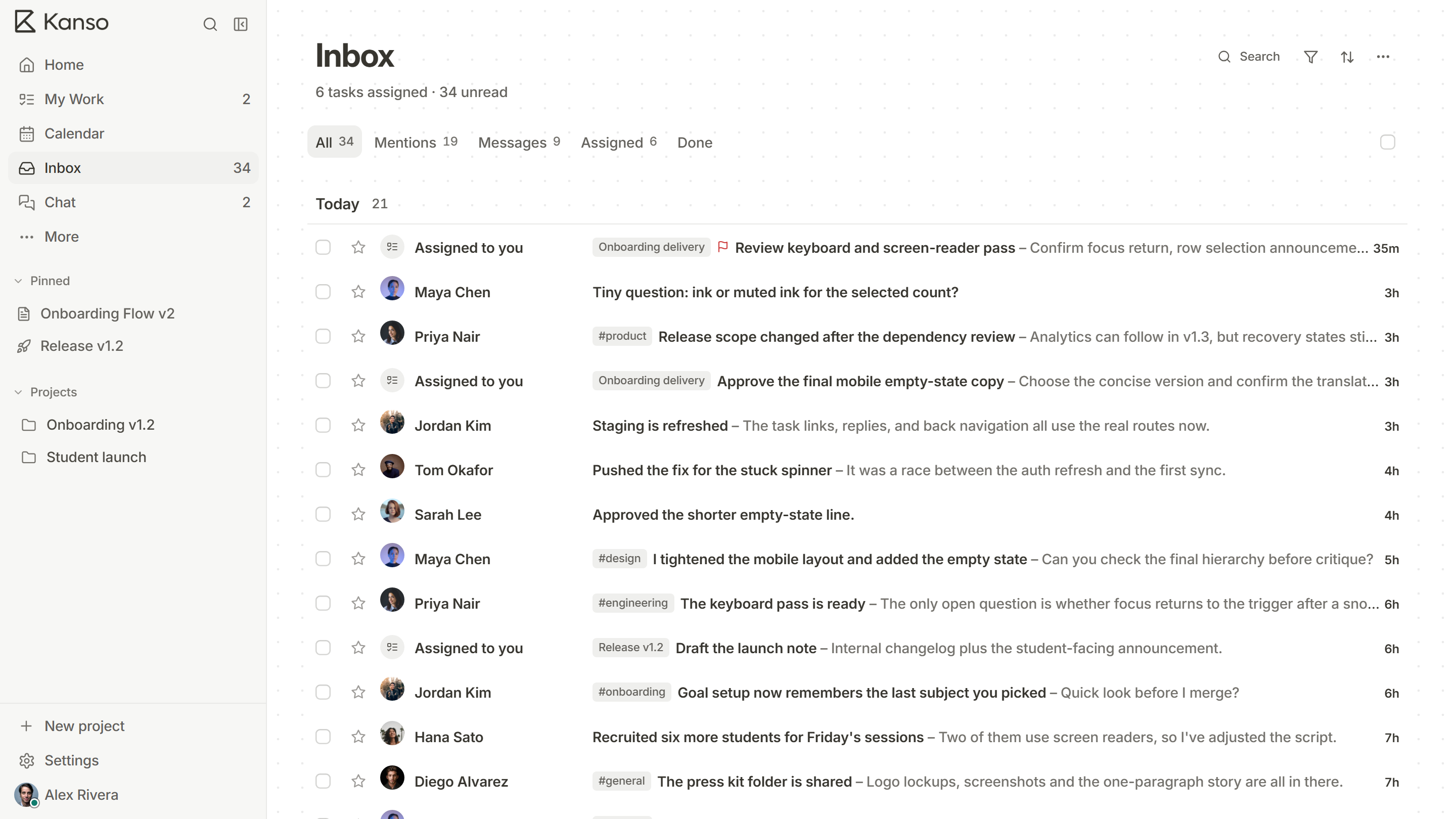
Everything that needs you, in one list.

  1. 01Mentions, messages and work assigned to you arrive one line each.
  2. 02Narrow the list to mentions, messages or what is assigned to you.
  3. 03Star what matters and mark the rest done.
The Kanso inbox heading, 6 tasks assigned and 34 unread, above the All, Mentions, Messages, Assigned and Done tabs with their counts.

DocsBoardsCalendar

A side project on your own

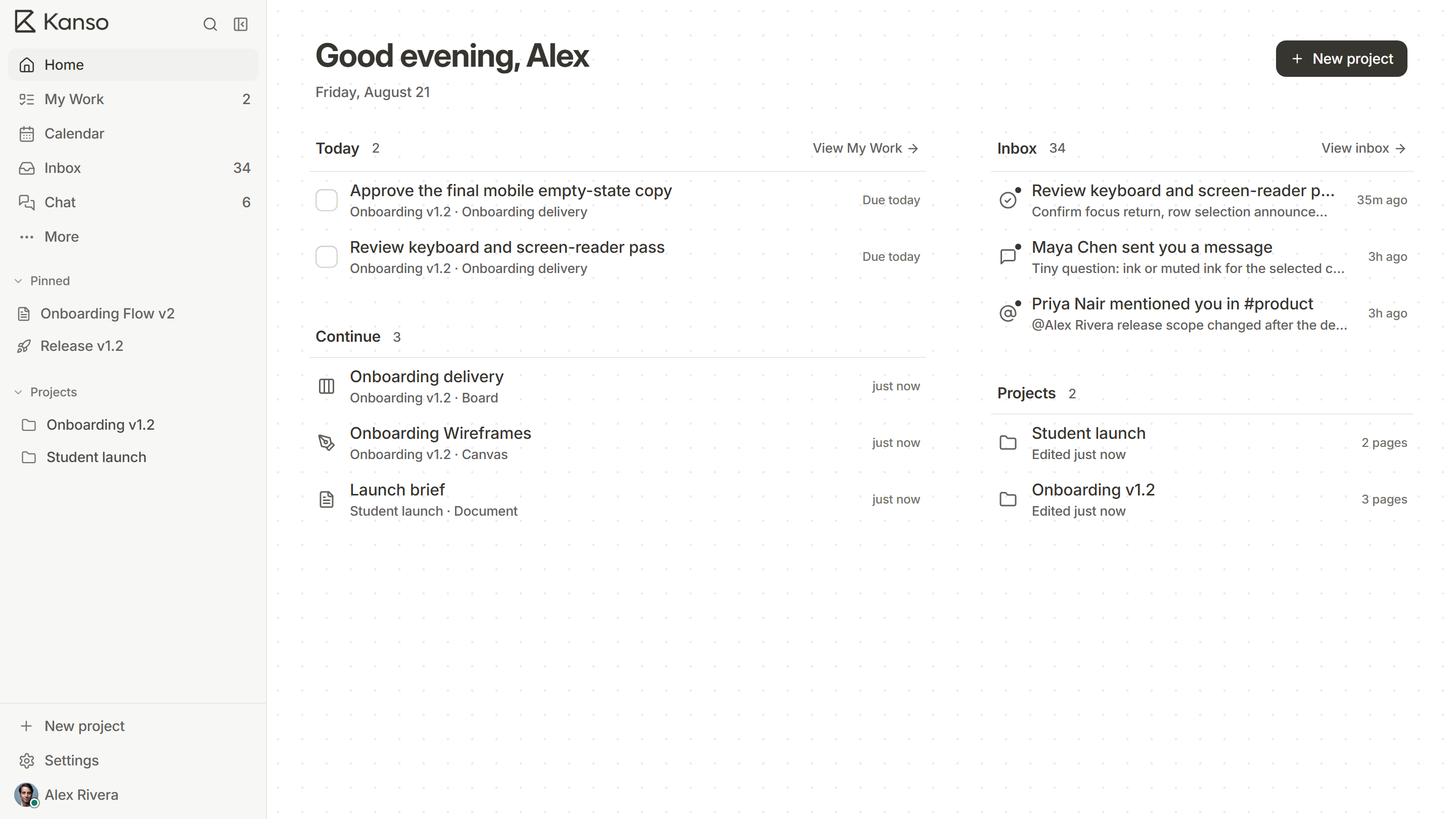
Plan it, build it and ship it, for free.

  1. 01Free does not expire, with unlimited projects and pages.
  2. 02Give each project a spec, a board and its dates on the calendar.
  3. 03Home opens on today’s tasks and what to pick up again.
Kanso’s Home screen greeting Alex on Friday, August 21, with today’s two tasks: Approve the final mobile empty-state copy and Review keyboard and screen-reader pass.

Questions

Any agent you can paste text into. Kanso copies a spec as plain Markdown, which Claude Code, Cursor, Codex and the rest read as it is.

Try Kanso free.

No card required. Free does not expire.

Start free